Whilst following the topics on this site you may need to create cronjobs, or you may create one of your own.
There are two types on cronjobs, one by using the crontab file, and the other by dropping a file into a specific directory.
This topic focuses on the crontab file.
It is ESSENTIAL that you never have any blank lines ANYWHERE in your crontab file, or the entire thing will not work.
Throughout all the topics we use a file editor called VIM (sudo vi /folder/filename).
To access the crontab file (using PuTTY) you need to enter this command.
sudo crontab -e
The first time you access the crontab file, you will be asked to select an editor.
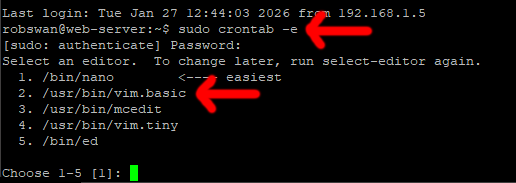
You should choose the option /usr/bin/vim.basic for this task, so you should type the number that corresponds with this and the press enter.
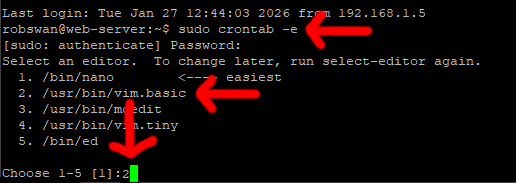
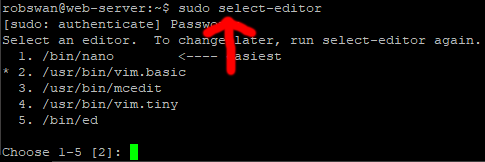
One you picked and editor once, the system will remember your choice, and automatically use that editor.
You can change your mind at any point by using this command.
sudo select-editor
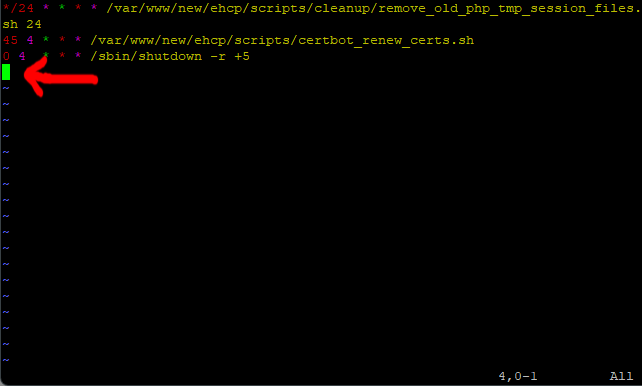
In this example there is blank line space at the end of the file, which can be very easy to miss.
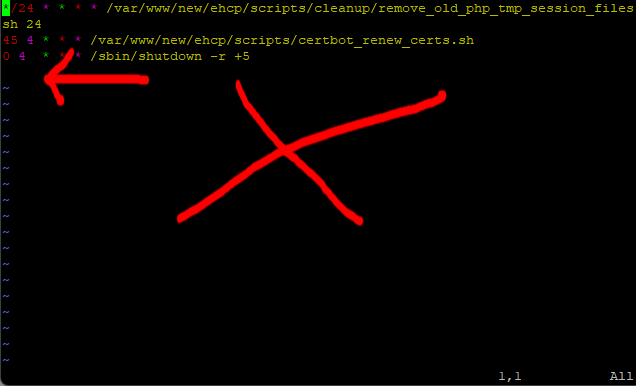
To make is easier, I have marked the problem with a red arrow.
In VIM, undefined lines are marked with a blue ~.
If we were going to fix this, we would use the arrow key to move the cursor down to the line in question.
In the Ubuntu 26.04 version of Vim, when you first move your cursor, the text colour is made lighter for easier reading.
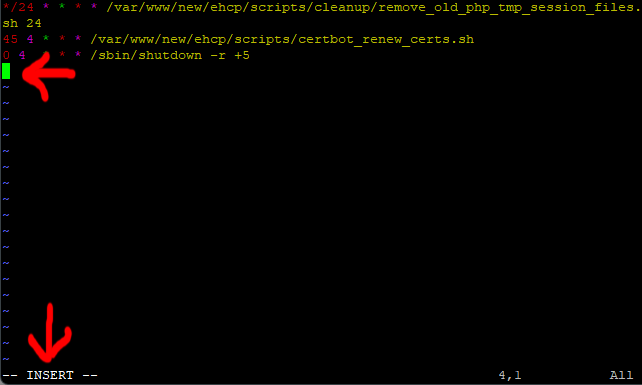
Then we would press the I key, the word INSERT would appear in the bottom left corner.
We would then press the backspace delete key on the keyboard to remove the line (not the key with the word Delete on it)
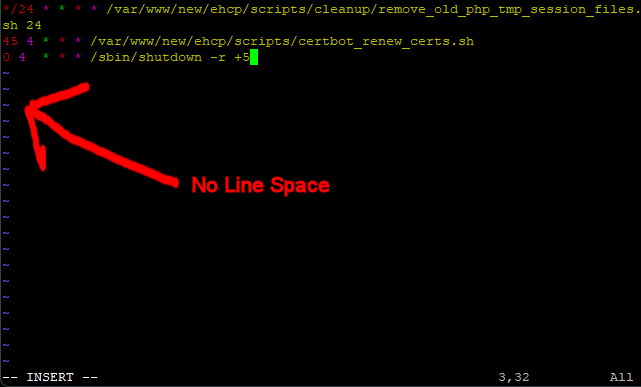
The line space has now been removed so we would then save the changes, so first press escape and the word INSERT will disappear.
Next press : then w.
:w Will appear in the bottom left (this is the save changes or write command).
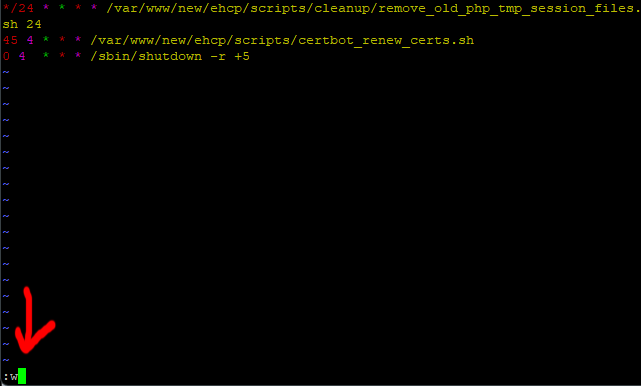
Next, you would press enter, this has now saved the changes.
Next your would press : then q.
:q Will appear in the bottom left (this is the quit command).
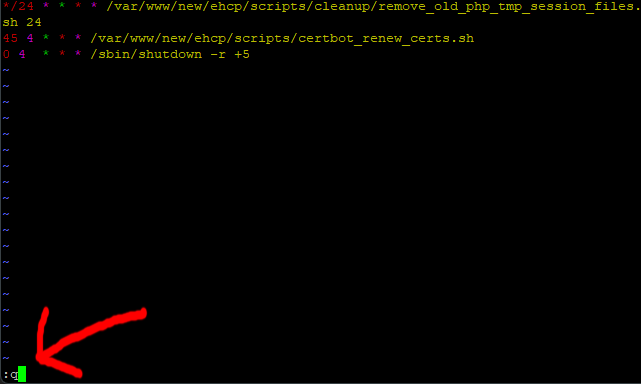
You would then press enter to close VIM.
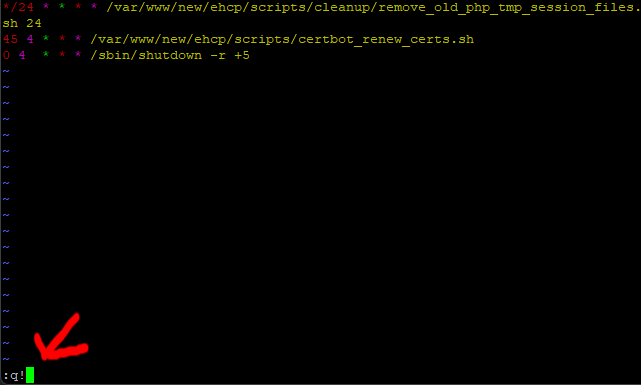
If you where to mess any file up in vim, you can exit without saving the changes, to do this you must not use the write (:w) command, instead the command would be :q! (quit without saving changes).
Incidentally, most other files can have blank line spaces in them, without causing any problems.
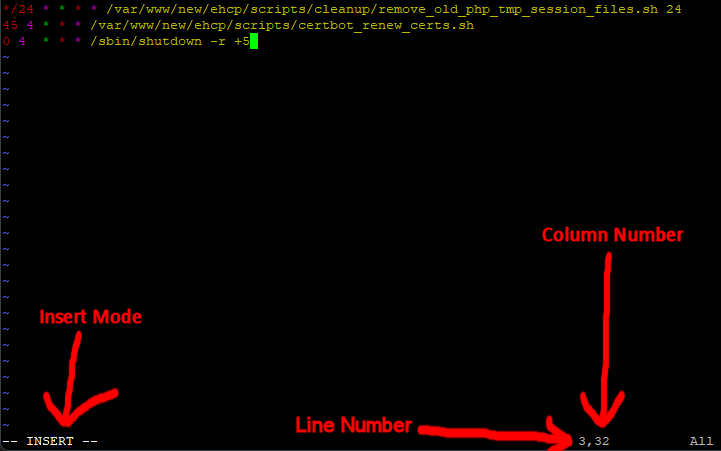
You may have noticed some numbers in the corner of the VIM screenshots.
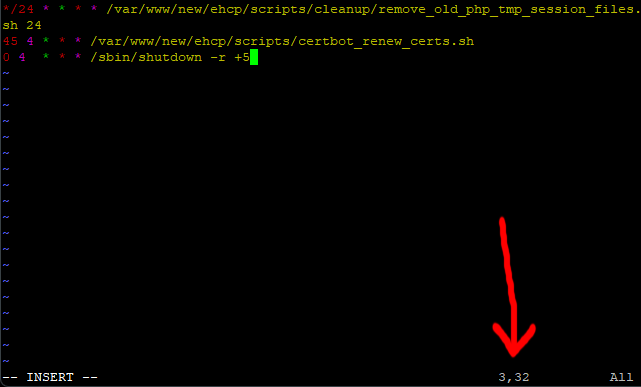
The first number indicates the line number the second is the column number.
So, in our example our cursor in on line number 7 and we are 54 spaces from the left (column number).
It may look like we should be on line 8, (in the example above) but the secound line is too long to fit on the page, so it wraps onto the next line. However, it is still only one line.
If we want to jump to the start of a file (VIM), we would use the command :0 (enter)Like this.
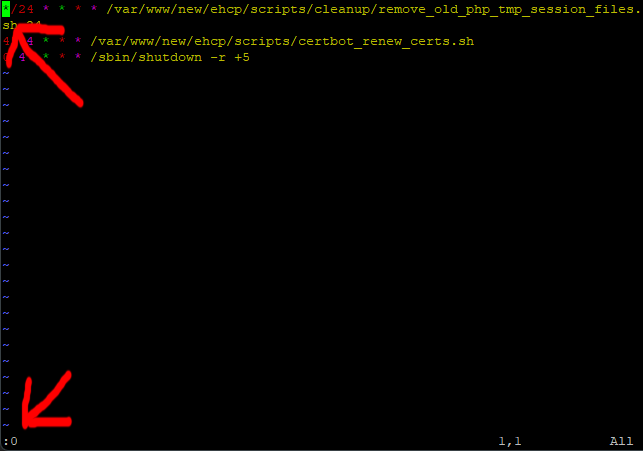
Before entering a command that starts with :, you should press Escape, to clear the mode.
If we wanted to move to the last line in a file the command is :$ (press escape first, if you need to).
Finally if you want to clear the contents of a file, use the command :%d . The changes wont take effect until you use the write command (:w). Also (as above) you could use the :q! command to exit without saving the changes (if you have not already used the write command).